


Your Android TV switches on, but navigating the home screen feels painfully slow. An app stays on its loading screen, the picture freezes during playback, or the remote appears to respond several seconds after you press a button. Restarting may help briefly, only for the same problem to return.
These symptoms do not automatically mean the television needs a replacement main board. An app fault, unstable internet connection, limited available storage, or outdated software can affect performance. Persistent problems across the whole interface may also require hardware assessment.
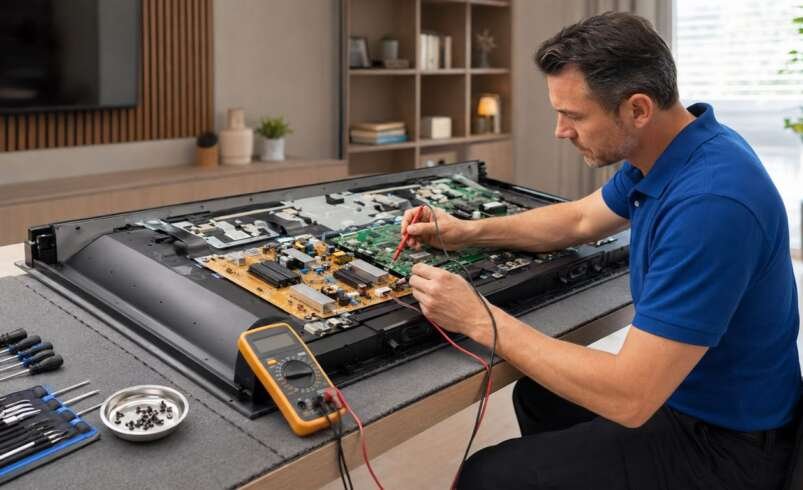
If the television remains unreliable after supported checks, arranging Android TV repair in Dubai can help identify the cause. The first step is to distinguish an internet or app problem from a television that freezes regardless of what you are doing.
Is the App Freezing, or Is the Entire Television Unresponsive?
A single app becoming stuck presents a different complaint from a home screen that no longer responds. Notice whether you can return to the TV’s menu when the problem appears. If the home screen works normally while one streaming app refuses to open, focus first on that application. If menus, settings, and several apps all respond slowly, the investigation needs to cover the wider system.
Also distinguish buffering from freezing. A loading symbol during streaming may indicate an interrupted data connection, while an unresponsive interface can have other causes. Describe exactly what remains functional. Sound continuing, menus responding, and the ability to change inputs are useful observations.
Check Whether the Remote Is Causing the Delay
A delayed response can sometimes originate with the remote rather than the television’s operating system. Weak batteries, an obstructed signal path, or a pairing issue may affect control, depending on the remote design. Check the batteries and follow the manufacturer’s pairing or connection instructions where applicable. Avoid assuming that every remote uses the same communication method.
If the television provides accessible onboard controls, compare their response using the manual’s guidance. Do not reach behind an unstable wall-mounted installation. When the TV responds promptly to another supported control method but slowly to its remote, report that distinction. It can prevent a control problem from being investigated as a general processing fault.
Compare One App with Other Television Functions
An app-specific comparison is often more informative than immediately resetting the entire television. Check whether another installed app, the home screen, and an available external input operate normally.
Record whether:
- Only one app fails to open.
- Several apps become unresponsive.
- Menus also move slowly.
- Playback freezes while navigation remains usable.
- The problem affects one programme or account.
- An error message appears before the app closes.
A problem limited to one service may require app support or account checks rather than internal TV repair. Avoid changing multiple settings simultaneously, since that makes the result harder to interpret.
Internet Problems Can Look Like a Television Fault
Streaming depends on a stable connection between the television, home network, and online service. A TV connected to Wi-Fi can still experience poor or interrupted data transfer. Check whether other devices are also struggling with the same service. This comparison provides context, although good performance on a phone does not prove that the television has an equally strong connection.
Notice whether the TV frequently disconnects, whether the router was recently moved, and whether the problem is limited to streaming. Follow the router and television manufacturers’ supported troubleshooting procedures. Do not assume that buying a new TV or replacing its Wi-Fi module is necessary because one video repeatedly buffers.
Restart the Television Using Its Approved Procedure
A normal system restart may clear a temporary software problem. On some televisions, pressing the remote’s power button enters standby rather than performing a full restart. Use the procedure specified for your model. Allow the TV enough time to complete startup before opening several apps.
Avoid repeatedly removing power whenever an app pauses. An update or maintenance process may be running, and interrupting it can create additional problems. If restarting restores normal performance only briefly, record how long the improvement lasts and what you do before the slowdown returns. That pattern is useful when requesting Smart TV inspection and repair.
Available Storage Can Affect Everyday Use
Installed apps and their data occupy the television’s internal storage. When available space becomes limited, installing updates or managing app data may become more difficult. Use the normal settings menu to review storage where the model provides that information. Remove apps you no longer need through the supported interface.
Do not delete unfamiliar system components or use unverified “cleaner” applications. More aggressive changes are not necessarily more effective and may interfere with normal operation. If the television repeatedly reports storage problems despite modest use, mention that to the technician. The assessment should consider both software conditions and any evidence of a deeper system fault.
Clearing Cache and Clearing Data Are Different Actions
Some televisions allow users to clear an app’s cached files. This may help with particular temporary app problems, but it should follow the manufacturer’s or app provider’s instructions. Clearing app data is more disruptive. It can remove sign-in information, preferences, and other stored details for that application.
Read the on-screen description before confirming either action. Make sure you can restore account access if needed, and change one app at a time. A temporary improvement does not establish that every fault has been resolved. If the same app repeatedly fails, record whether the problem returns after opening it, signing in, or playing particular content.
Updates Should Match the Exact Television Model
Operating-system and app updates can address compatibility or reliability issues. Check for updates through official, supported channels when the television is stable enough to complete the process. Read the instructions and avoid interrupting installation. Software intended for a different model should not be installed, even when the brand and screen size appear similar.
If the TV freezes during updates or cannot remain operational long enough to finish, seek model-specific assistance before trying again. Tell the service provider whether the problem began immediately after an update. That timing provides useful context, although it does not by itself prove that the update caused the fault.
Connected Accessories Can Add Another Variable
USB storage, external devices, and other accessories may affect behaviour in some circumstances. A recently connected accessory is worth mentioning if the slowdown began at the same time. With equipment switched off, remove accessible nonessential accessories according to their instructions. Do not disconnect a device while the television is actively writing data to it.
Observe whether the TV’s own interface behaves differently afterward. Change one connection at a time and keep track of the result. If freezing is limited to an external Android TV box, the television itself may be working normally. Clarify which device runs the affected apps before booking a repair.
When a Factory Reset Is Worth Considering
A factory reset can remove accounts, installed apps, network details, and personalised settings. It should be a deliberate troubleshooting step, following the manufacturer’s guidance. Before resetting, preserve the information needed to restore your setup. Record the symptoms and any errors so useful diagnostic details are not lost.
A reset cannot repair a confirmed hardware fault. If the television quickly becomes unreliable again before many apps are installed, explain that pattern when arranging Android TV fault diagnosis. Avoid repeated resets as a routine workaround. The aim is to establish why performance deteriorates, not continually rebuild the same setup.
What Should Professional Diagnosis Include?
Persistent freezing across menus and apps may require assessment of the software environment, controls, power stability, and internal hardware. The appropriate checks depend on the model and symptoms.
Before approving parts, ask:
- Does the fault affect the TV itself or an external device?
- Were app and network conditions considered?
- What testing supports a hardware diagnosis?
- Is repair possible without replacing the complete board?
- What data or settings will the work remove?
- What parts, labour, and warranty are included?
Do not open the casing or attempt internal board repairs. A slow interface alone does not justify replacing a main board without supporting findings.
Verify Performance with the Functions You Actually Use
After troubleshooting or repair, check the home screen, settings, and the apps involved in the original complaint. Test normal navigation and representative playback rather than judging only the startup logo. Where the slowdown developed after extended use, allow the assessment to reflect that history. Ask what to monitor and how to report a recurrence.
For continuing freezes or apps that will not open, professional TV repair services in Dubai can assess the complete operating pattern. Identifying whether the cause lies in an app, connection, software, or hardware helps restore dependable viewing without unnecessary replacement parts.